Share household tasks without long message threads
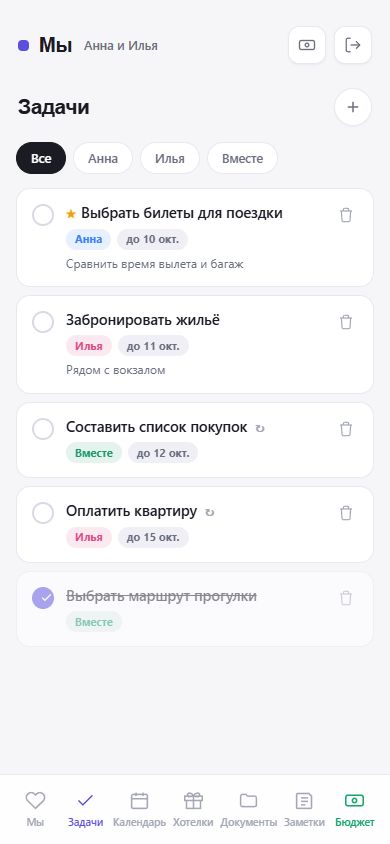
Open Tasks in the Us tab. Each task has a title, an assignee, a note and an optional due date. Assign it to yourself, your partner or “Together”, and use the important flag to mark a priority.
Filters named after the participants and “Together” show each person’s part of the list. Completed one-off tasks stay at the bottom; uncheck one to continue it. Completing a repeating task moves its due date to the next occurrence until the series ends. Dated tasks can repeat weekly, every two weeks, monthly or yearly.
What tasks and the calendar look like in the app
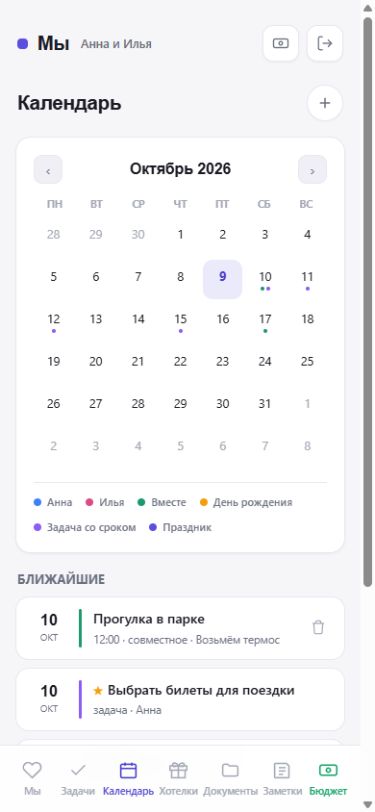
These are real interface screenshots from Anna and Ilya’s demo space. Names and tasks are fictional, and no real user data is shown. The screenshots show the Russian interface.
How an event differs from a task
A task is something to do and then mark complete: buy a gift, book a medical appointment or pack a suitcase. An event is a date in your schedule: a meeting, trip or anniversary. Events can have a time, note and repeat interval; dated tasks also appear in the calendar until completed.
- Record the dateAdd “Anniversary dinner” on the relevant day. Set a yearly repeat for annual plans.
- Share the preparationAssign “Book a table” and “Choose a gift” as separate tasks. Their due dates can be earlier than the event.
- Check what is coming upThe calendar’s Upcoming block shows events, holidays and unfinished dated tasks within 30 days. Birthdays from People are shown seven days ahead.
You can store relatives’ and friends’ birthdays in People, without entering them again every year.
Holidays and gift ideas for two
The calendar already contains three annual occasions: 14 February — Valentine’s Day, 8 March — International Women’s Day, and 31 December — New Year. You do not need to create them manually. New Year appears in Upcoming when it is no more than 30 days away.
Open a holiday, select “Gift ideas”, then “Find gifts with AI”. Browse the ideas, select some, choose the recipient and select “Add selected to Wishlist”. Simply opening the calendar does not start a search or save anything.
For example, for 14 February you could choose an experience for two, save it in Wishlist, adjust its name and note, and add the preparation as a separate task. Wishes and tasks are not linked automatically.
Suggestions are available for holidays in the current and following year and refresh no more than once a day. Check suggestions yourself: the app does not buy gifts or guarantee availability or price. Ordinary wishes can be added manually without AI. Read more about the wishlist and data processing.
Get started with your partner and use the app on your phone
- Create your spaceRegister on the website. You can start adding tasks yourself if your partner has not joined yet.
- Share the invitation codeYour partner registers with their own email and enters your code. Shared tasks and events then become available to both of you.
- Choose how to installOn Android, install «Мы» from RuStore. On iPhone, add the website to your Home Screen in Safari. You can also use it in a browser.
You can add a task offline: it is saved on your phone and sent to your partner when the connection returns. Enable notifications in the profile on the relevant device and allow them in system settings. On iPhone, notifications are available after adding the site to the Home Screen. Detailed steps are on the installation page.
The space is designed for two people, not a large family or work team. Tasks and events are shared, so this list is not a private personal notebook.
Start with one shared task
Add your next shopping errand or weekend plan, assign it to someone and invite your partner.
Create a shared space